
Write a scene
Open a scene, write in it, and read a whole chapter as one text.
Write is where your text is. Structure on the left lists your parts, chapters and scenes. The scene you open fills the middle.
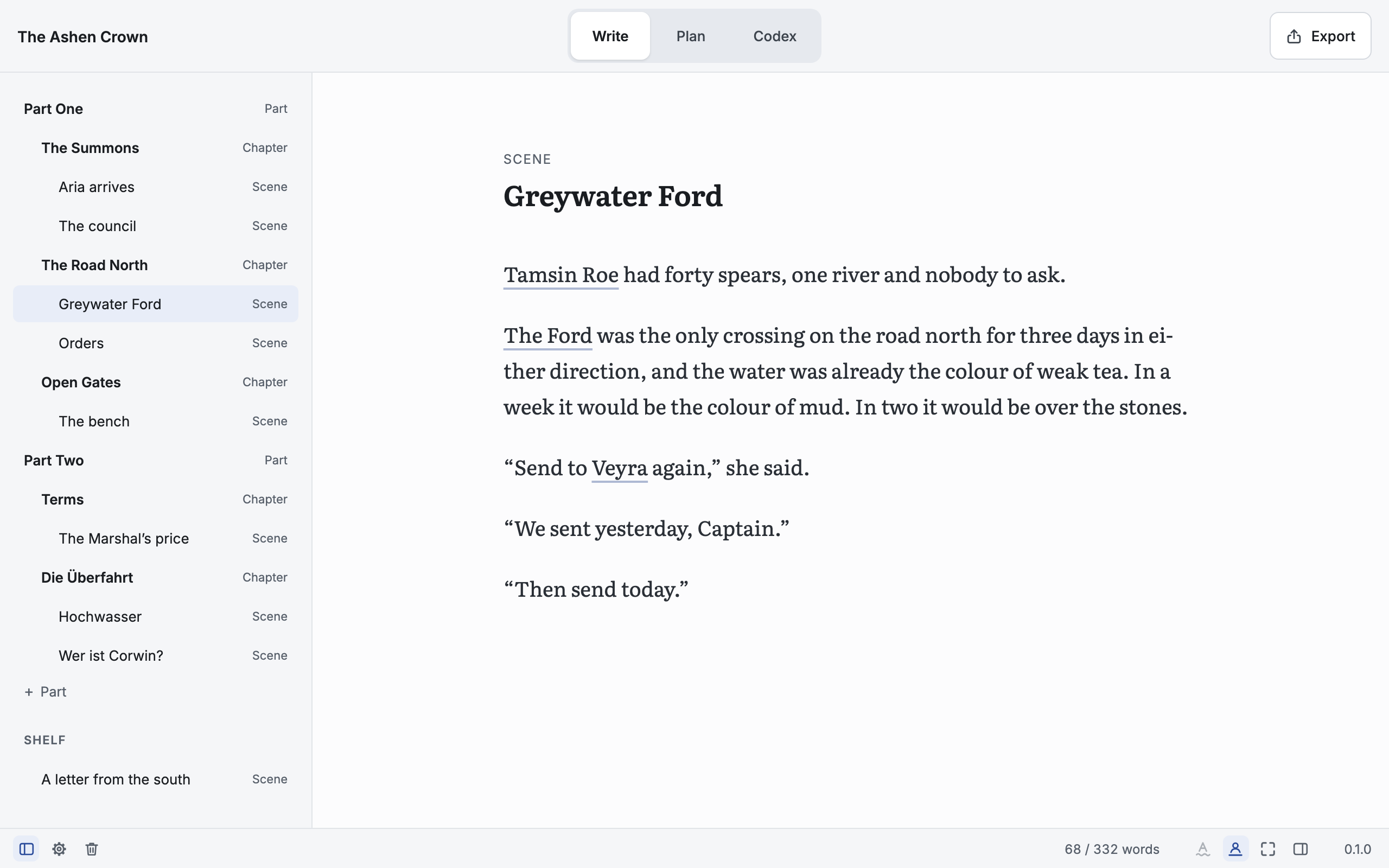
Open a scene
- Click it in Structure.
- Or press ⌘K (Ctrl+K on Windows) and type part of its title, such as "corwin". Beside each title you see the part and chapter it sits in. Press Enter, and the cursor waits at the start of the scene.
Then click into the text and type.
Read and write a whole chapter
Click a chapter in Structure, or find it with ⌘K. Its scenes follow each other as one text, and you can write in any of them. Click a scene in Structure to see it on its own again.
Move through it as through one text. Press ↓ on a scene's last line to go to the first line of the next scene, ↑ on its first line to go back to the scene before. → at the very end of a scene goes on to the start of the next, ← at the very start to the end of the one before. Tab goes to the next scene too.
A part, or a book, opens the same way, with each chapter's title before its scenes. There the arrow keys go on across chapters.
To cut a scene in two, or run two together, see Split and join scenes.
Saving
There's no Save button. Your text saves a second after you stop typing, when you switch to another window, and when you quit.
Good to know
- Each scene is a plain text file in your project's folder. Open a scene and change nothing, and its file stays exactly as it was. Type in one paragraph, and only that paragraph changes in the file.
- Next time you open the project, Write shows the scene or chapter you had open last, from its title.
- In a chapter, you select text, find and undo within one scene at a time: the one your cursor is in. Shift with an arrow selects up to the start or end of a scene, no further.
- Names from your codex are underlined in your text. See Names in your text.
- The status bar counts your words. See Word count.
- Lists, links and tables written into a scene by another app show as plain text, and stay as written until you change that paragraph.