
Undo and the trash
Take back a change, see what you deleted, put it back, or delete it for good.
Nothing you delete in Qwil is gone at once. It waits in the trash until you empty it, and most changes come back with Undo.
Undo a change
Press ⌘Z (Ctrl+Z on Windows), choose Undo the last change in Commands, or Edit › Undo in the menu bar. ⇧⌘Z (Ctrl+Shift+Z) redoes it.
- While you type in a scene or a description, Undo takes back your typing.
- Everywhere else, it takes back your last change in the space you're in. In Write and Plan, that's a change to your parts, chapters and scenes: a move, a new title, a synopsis, a scene you moved to the trash. In the Codex, it's a change to your entries.
A notice at the bottom right says what Undo did, such as “Hochwasser im März” is called “Hochwasser” again. Click Show in it to go there: a scene or chapter opens in Write, an entry in the Codex.
Undo remembers the changes since you opened the project. When there's nothing left to undo in a space, the notice says so.
Open the trash
Click the trash can at the left end of the status bar, beside the gear. Or choose Open the trash in Commands, or View › Trash in the menu bar. To go back, click the trash can again, click Close, or press Esc.
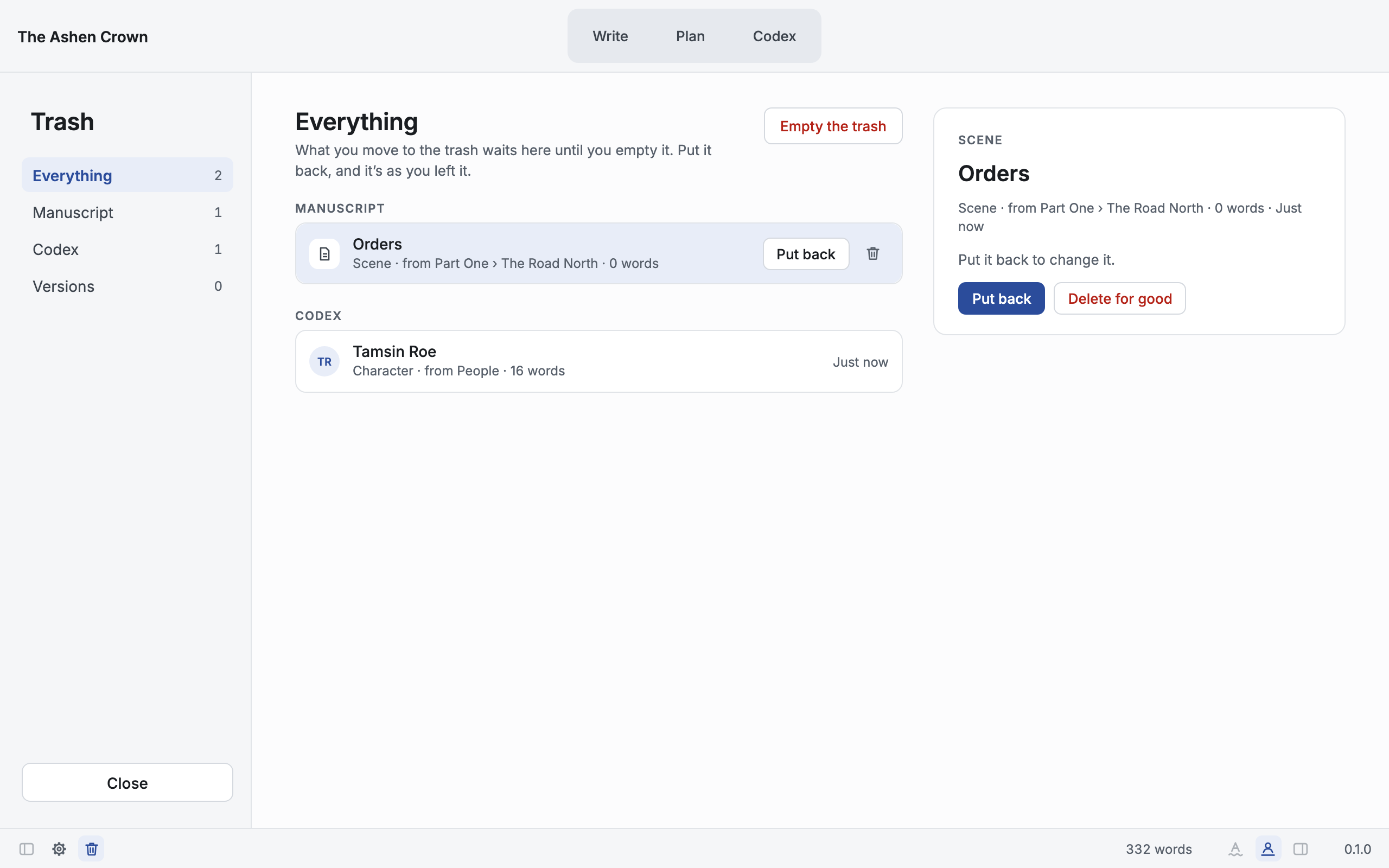
On the left, choose Everything, Manuscript, Codex or Versions. Each shows how many things are in it. Click a row to read it beside the list. A chapter or part shows with its scenes.
Put something back
Point at a row, or click it, and click Put back. A notice says where it went. To send it back to the trash, close the trash and Undo in Write, Plan or the Codex.
- A scene whose chapter is in the trash too says "(in the trash)". Click Put back in and choose the chapter at the top of the menu. The chapter goes back with the scene in it, and one Undo takes both back.
- A version whose scene or entry is in the trash: click Put back, then Put both back.
- When its place is gone, Put back in lists the chapters or parts it can go into, and for a scene the shelf.
Delete for good
Click the trash can on a row, or Delete for good beside its text, then Delete for good again. To delete everything, click Empty the trash.
What you delete for good goes to your computer's own Trash (the Recycle Bin on Windows), so you can still find it there. Undo can't bring it back.
Good to know
- A scene or entry you delete for good takes its versions with it.
- A version whose scene or entry was deleted for good can't go back. You can still delete it for good.
- A codex entry whose folder is gone goes back anyway: the folder comes back with it.
- In the trash, a scene's text shows without your notes. Put it back to see them.
- Undo and Redo wait while Settings or Export is open.
- Changes in Settings save at once. Undo doesn't take them back.
- The trash is a folder inside your project,
trash, not your computer's Trash.