
Export your book
Make a Word file or a PDF of your book, or of part of it.
Export turns your project into a Word file or a PDF: a manuscript for an agent or a publisher, a Normseite, a paperback to read. What it looks like comes from a profile. Your notes never go into an export.
Export your project
- Click Export at the top right, press ⌘E (Ctrl+E on Windows), or choose Export in Commands.
- Under Format, pick PDF or Word.
- Under Profile, pick how it should look. See The built-in profiles.
- Click Export PDF or Export Word, and choose where the file goes.
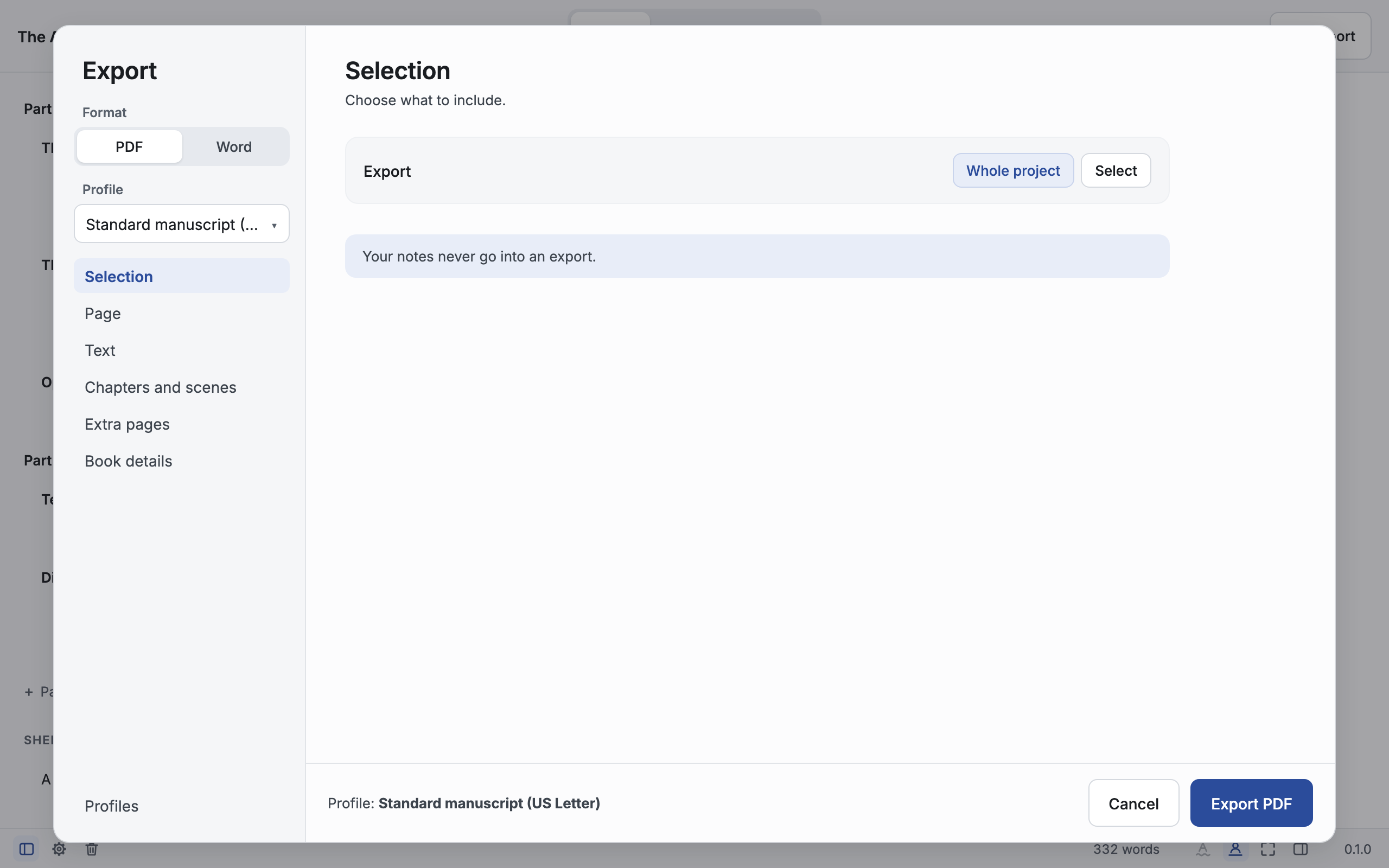
Choose what goes in
- In Export, under Selection, choose Select.
- Untick a part, chapter or scene to leave it out, or tick it to put it back. A part or chapter with only some of its scenes ticked shows a dash. Click it to tick all of it again.
Each scene shows its status at the end of its row. Under Status, click Planned, Draft or Revised to tick every scene with that status, and click it again to untick them.
To export one part or chapter, right-click it in Structure or in the outline and choose Export. Export opens with only that one ticked. Tick more to add them.
Fill in the title page
- Under Book details, type the Author.
- Under Extra pages, type Your address. It sits at the top left of the title page, for agents and publishers.
Your project keeps both for every export.
For a competition that wants no name, empty Author and Your address. Nothing in the file names you then, not even its properties.
Good to know
- What you just typed goes in, even before it's saved.
- Chapters keep their numbers from the whole book. Export chapter three on its own, and it's still Chapter Three, under its part's heading.
- With nothing ticked, you can't export.
- Export keeps your selection, ticks included, until you change it. It also keeps the format and profile you used last, in each project. Both stay on this computer.
- If a profile's font isn't on your computer, Export says so and stays open. Install the font, or choose another profile.
- A Word file you export says what its headings are, in two properties Word shows on the Custom tab of the file's properties: Qwil headings and Qwil scenes. They don't change how it looks or prints, and they bring your parts, chapters and scenes back when you import the file. See Import a Word file.