
Find your way around
The three spaces, the menu bar, Commands, the status bar and the panels.
Qwil has three spaces: Write, Plan and Codex. Your project's title sits at the top left, the spaces in the middle, and Export at the top right.
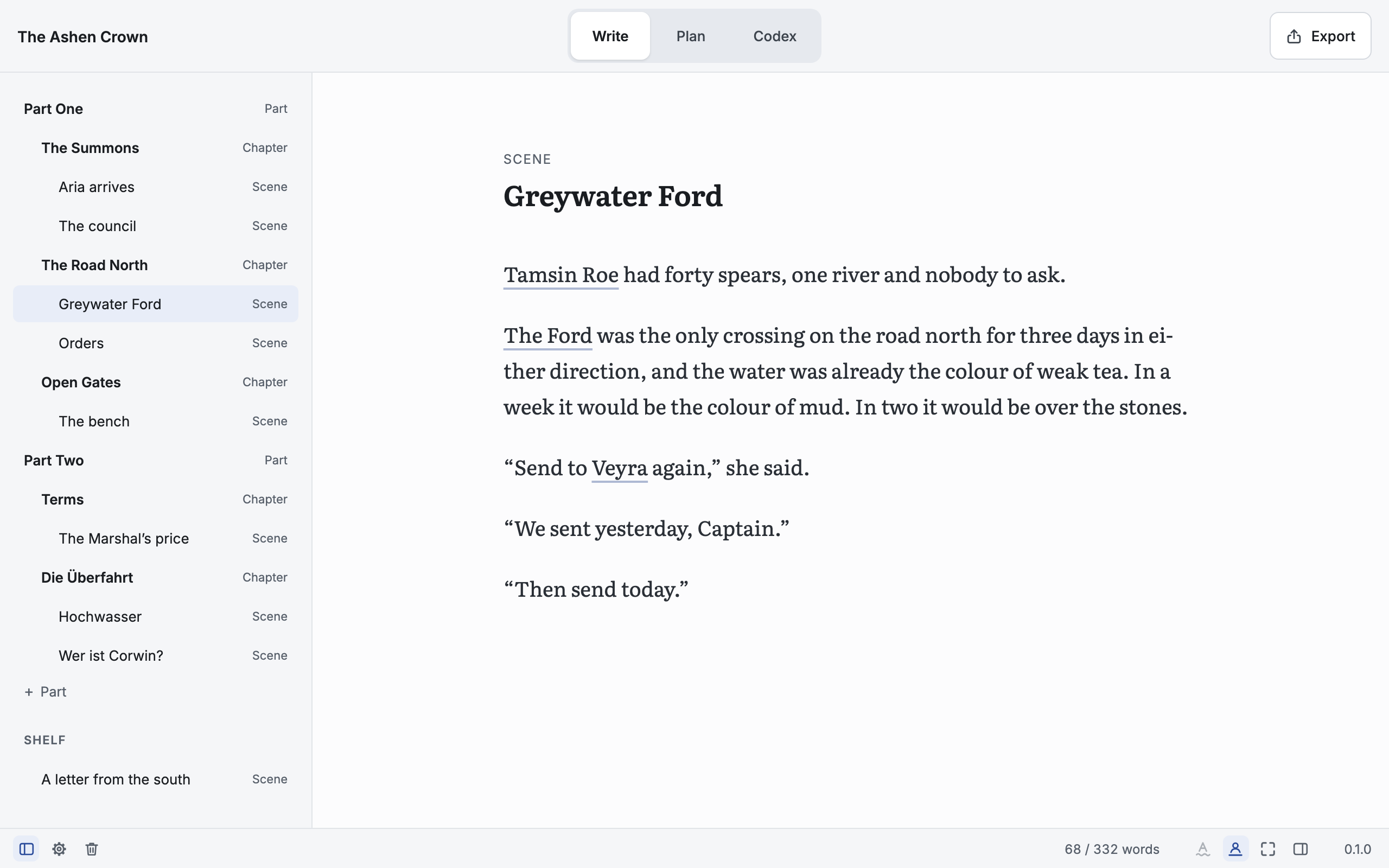
Move between spaces
Click Write, Plan or Codex at the top, or press ⌘1, ⌘2 or ⌘3 (Ctrl+1, Ctrl+2, Ctrl+3 on Windows). Each space keeps its place while you're in another: your scene is still open when you come back to Write.
The menu bar
On a Mac, Qwil's menus sit in the menu bar at the top of your screen, with each shortcut beside its item.
- File: start a project from scratch or from a Word file, open, close and export your project, and save a version of a scene.
- Edit: Undo and Redo, Cut, Copy and Paste, Find, Add Note, Split Scene, Join with Next Scene, Rename and Spellcheck.
- Book: add a part, chapter or scene, and move or trash the one selected in Structure.
- View: switch between Write, Plan and Codex, show and hide the panels, turn on Focus Mode and Codex Names, open the Word Count and the Trash, and pick the theme.
A greyed item does nothing where you are, such as Rename until you select something in Structure. A tick shows what's on. The menus speak the language you chose for Qwil.
On Windows, use Commands.
Find any command
Press ⌘K (Ctrl+K on Windows) and type a few letters of what you want: "export", "dark", "close", or part of a scene's title. Choose with the arrow keys and press Enter. Esc closes it. Commands shows the shortcut beside every command that has one.
The status bar
- At the left end: show or hide Structure (in the Codex, the list of entries), the gear that opens Settings, and the trash can that opens the Trash.
- At the right end, in Write: the word count, spellcheck on or off, the names from your codex on or off, focus mode, and show or hide the Side panel. Then the version of Qwil you're running.
The panels
In Write, Structure on the left shows your parts, chapters and scenes. The Side panel on the right holds Versions. Press ⌘J (Ctrl+J on Windows) to show or hide the side panel. In the Codex, the list of entries is on the left, and the side panel holds the versions of a description.
Notices
A notice shows at the bottom right and goes on its own. Point at it to keep it while you read, or click the × to dismiss it. When something didn't work, the notice stays until you dismiss it.
Undo
⌘Z (Ctrl+Z) undoes, ⇧⌘Z (Ctrl+Shift+Z) redoes. While you type, they take back your typing. Everywhere else, they take back your last change in the space you're in. See Undo and the trash.