
Start or open a project
Start a new project, open one you have, and come back to the ones you used last.
A project is one book: its parts, chapters and scenes, its codex, in a folder of its own. When no project is open, you see the start screen.
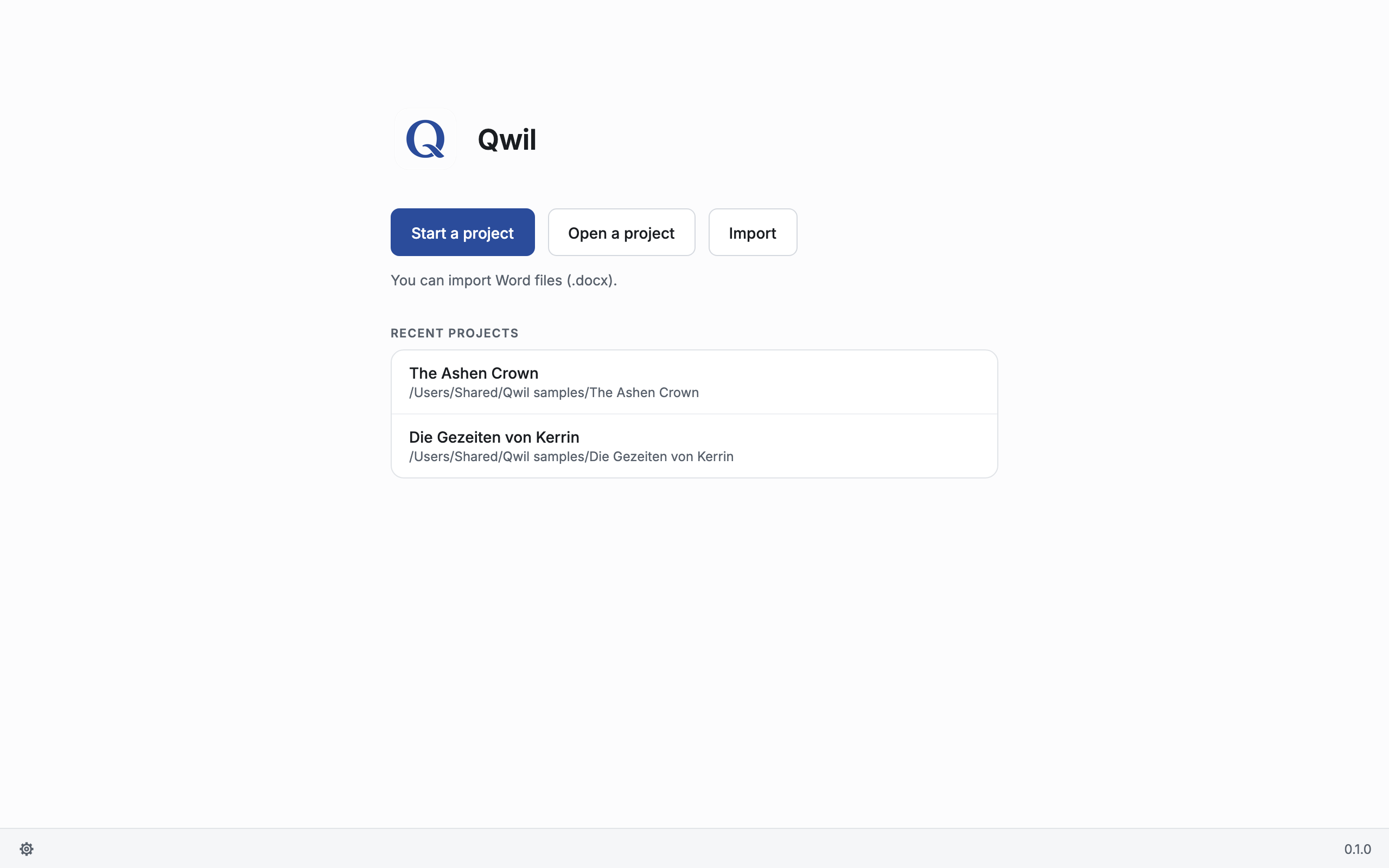
Start a project
- On the start screen, click Start a project.
- Give it a Title.
- Under Structure, pick how your project is divided: chapters and scenes, with parts above them, books, or both.
- Pick the Language you write it in. It sets the spelling and the quotation marks.
- Click Choose folder and pick where the project should go. Your project gets its own folder in there, named after its title.
- Click Create project.
Its codex starts with Characters and Places, ready to fill in. See Entries.
With a project already open, choose File › New Project › From Scratch in the menu bar, or press ⌘K (Ctrl+K on Windows) and choose Start a project. Your project stays open until the new one is made: Back or Esc takes you back to it.
Import a Word file
Click Import on the start screen, and your manuscript becomes a project. See Import a Word file.
Open a project
Click Open a project on the start screen, or press ⌘O (Ctrl+O), and choose the project's folder: the one with project.qwil in it.
Come back to a recent project
Recent projects on the start screen lists the last ten projects you opened, newest first. Click one to open it. Remove takes it off the list and leaves its folder alone.
Close a project
Choose File › Close Project in the menu bar, or press ⌘K (Ctrl+K) and choose Close this project. You're back on the start screen.
Good to know
- When you open a project again, Write shows the scene or chapter you had open last. That's kept on this computer only.
- Moved or renamed a project's folder in Finder or Explorer? The list says the folder is no longer there. Remove it from the list and open it from its new place.
- The list of recent projects stays with the app, never in a project's folder.